> For the complete documentation index, see [llms.txt](https://globosoftware.gitbook.io/globosoftware-docs/llms.txt). Markdown versions of documentation pages are available by appending `.md` to page URLs; this page is available as [Markdown](https://globosoftware.gitbook.io/globosoftware-docs/build-your-form/translate-a-form.md).

# Translate a form

Give a form its wording in every language your store sells in — manually, or instantly with Auto-translate.

## 🔍 How It Works

The form switches automatically to match the language a visitor picks on your storefront. No extra setup once translations are saved.

**Example:** Store languages = English (default) and Vietnamese.

<table><thead><tr><th width="223.2000732421875">Visitor's store language</th><th>Form shows</th></tr></thead><tbody><tr><td><strong>English</strong></td><td>"First Name", "Last Name", "Submit"</td></tr><tr><td><strong>Vietnamese</strong></td><td>"Tên của bạn", "Họ của bạn", "Gửi"</td></tr></tbody></table>

> **📌 Note:** Only languages already enabled in your **Shopify store** appear here. Add a language in Shopify first — see [Manage languages](https://help.shopify.com/en/manual/markets/languages/manage-languages).

## 📝 Steps to translate a form

{% stepper %}
{% step %}

### Open the form

Open the app > click **Forms** > open the form you want translate
{% endstep %}

{% step %}

### Open the Translation tab

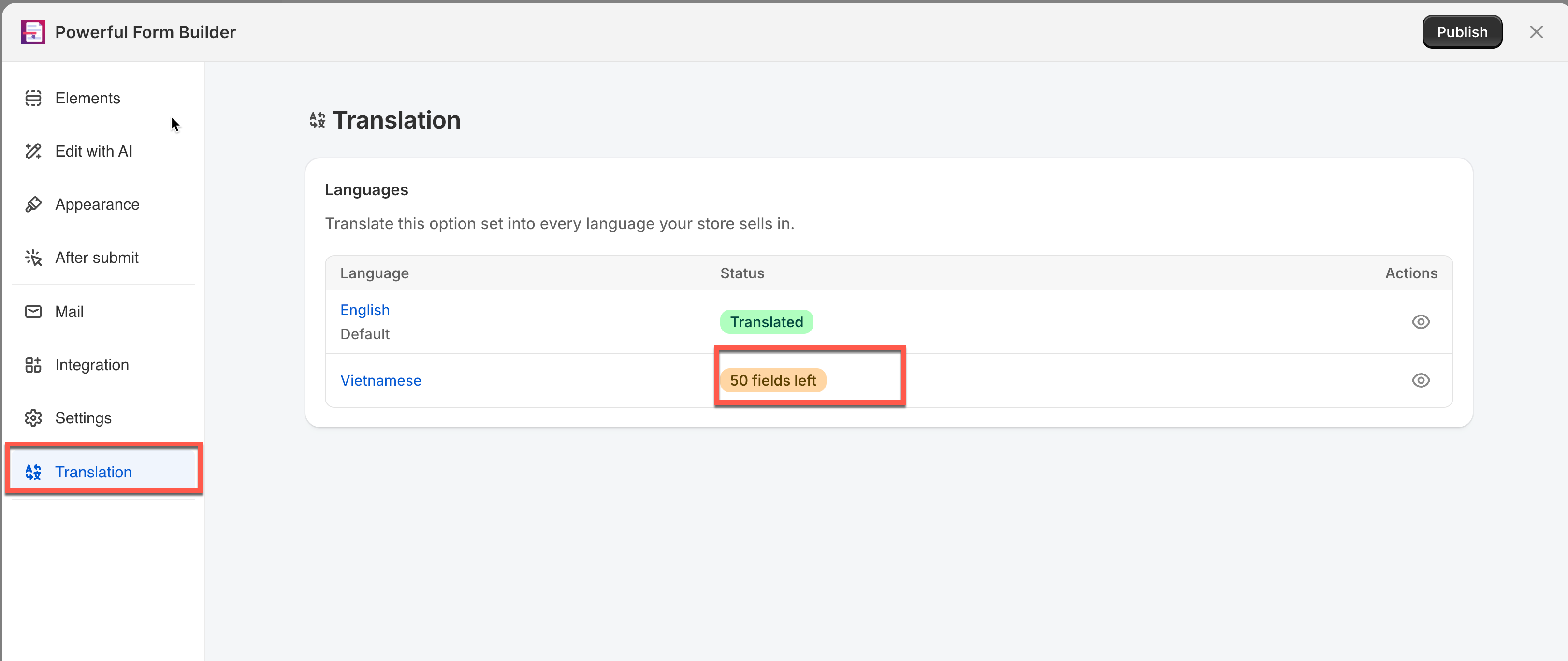
**Translation** tab in the left sidebar.

Click a language to open its translation view.

<figure><img src="https://712145376-files.gitbook.io/~/files/v0/b/gitbook-x-prod.appspot.com/o/spaces%2F2AkSDlkSYnQXINUtOZOT%2Fuploads%2Fgit-blob-92ef59121ee3f00954609c75d38ed5891dc62061%2Fimage.png?alt=media" alt=""><figcaption></figcaption></figure>

{% hint style="info" %}
Only the languages that are enabled in your Shopify store will appear in the translation dropdown inside the app. If a language isn't enabled in Shopify, it won't show as an option in the Form Builder. [Learn more](https://help.shopify.com/en/manual/markets/languages/manage-languages)
{% endhint %}
{% endstep %}

{% step %}

### Translate all form text

#### ⚡ Option 1: Auto-Translate (New)

Fill in every field at once instead of typing each one by hand.

1. Open a language (e.g. **Vietnamese**)
2. Click **Auto-translate**
3. Every field — labels, placeholders, descriptions, error messages, admin and customer emails — is translated automatically
4. Review the results, edit anything you want to adjust
5. Click **Save**

<figure><img src="https://712145376-files.gitbook.io/~/files/v0/b/gitbook-x-prod.appspot.com/o/spaces%2F2AkSDlkSYnQXINUtOZOT%2Fuploads%2Fgit-blob-293a9ae8921708a7f70f7ad0f7516f1e52ac5ec9%2F2026-09-30_10-20-06.png?alt=media" alt=""><figcaption></figcaption></figure>

**💡 Tip:** Auto-translate also handles email content, and keeps variables like `{{data}}` intact instead of translating them.

#### ✏️ Option 2: Translate Manually

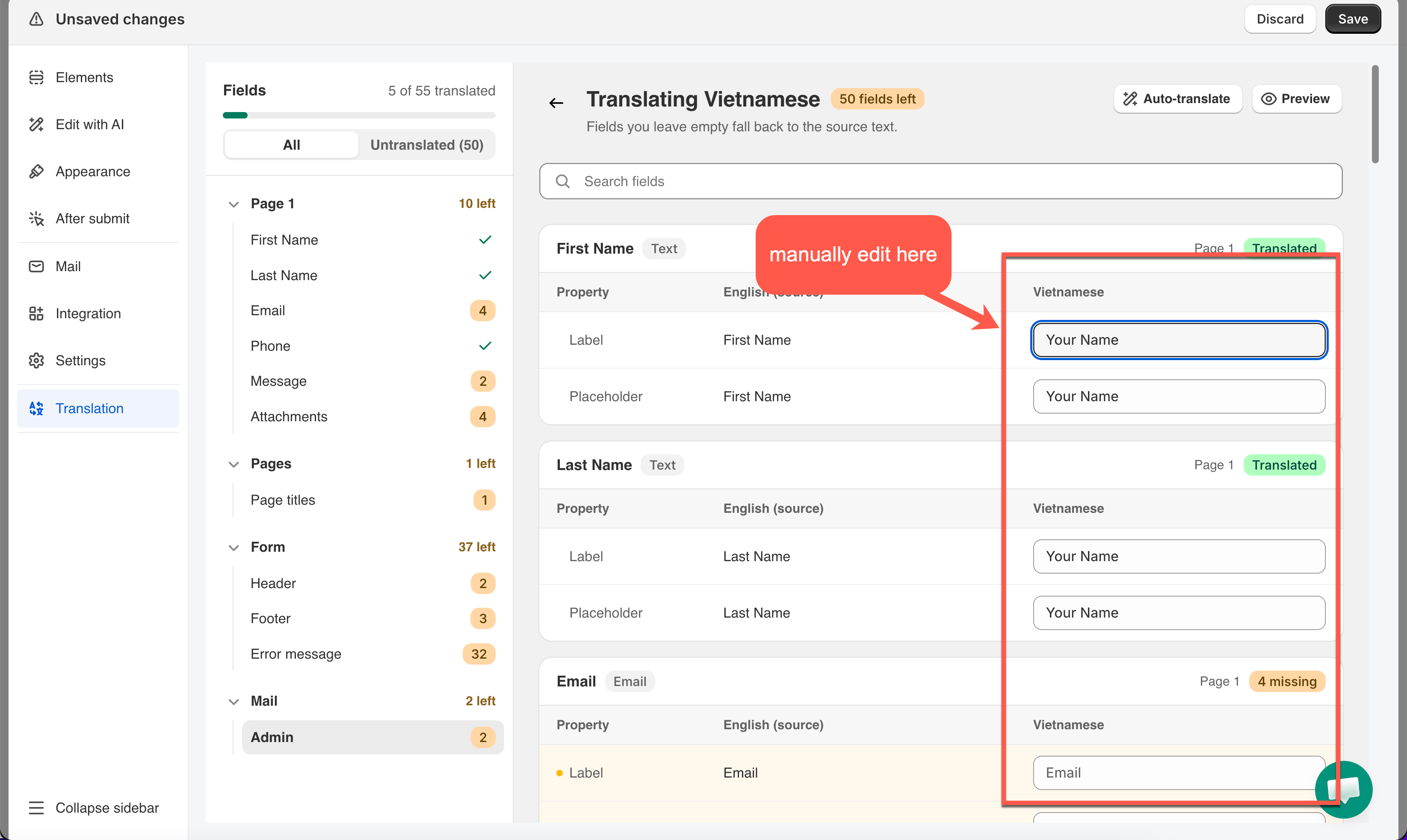
1. Open a language
2. Use **All** or **Untranslated** to filter the field list
3. Click into any field's translation box and type your own text
4. Repeat for each field, or section (Form, Mail, Pages)
5. Click **Save**

<figure><img src="https://712145376-files.gitbook.io/~/files/v0/b/gitbook-x-prod.appspot.com/o/spaces%2F2AkSDlkSYnQXINUtOZOT%2Fuploads%2Fgit-blob-bf1ad7c5f52eeea583c8f16aa2ac770a5634b4d6%2F2026-09-30_10-21-29.png?alt=media" alt=""><figcaption></figcaption></figure>
{% endstep %}

{% step %}

### Save the form

{% endstep %}
{% endstepper %}

> **📌 Note:** Auto-translate and manual editing work together — auto-translate everything first, then manually adjust any field you want worded differently.

## 📋 What Gets Translated

<table><thead><tr><th width="203.566650390625">Section</th><th>Includes</th></tr></thead><tbody><tr><td><strong>Page 1</strong> <em>(per field)</em></td><td>Label, Placeholder, Description</td></tr><tr><td><strong>Pages</strong></td><td>Page titles</td></tr><tr><td><strong>Form</strong></td><td>Header, Footer, Error messages</td></tr><tr><td><strong>Mail</strong></td><td>Admin and customer email Subject + Content</td></tr></tbody></table>

> **⚠️ Note:** A field left empty falls back to the source language text — it won't show blank.

<br>

## Next steps

* [Supported languages](/globosoftware-docs/settings/app-language.md#the-18-interface-languages) — the full list, and which plan multi-language needs.
* [Edit error messages](/globosoftware-docs/build-your-form/error-messages.md) — the validation wording, which is translated the same way.
* [Change the app language](/globosoftware-docs/settings/app-language.md) — the language of the admin, not the form.