> For the complete documentation index, see [llms.txt](https://globosoftware.gitbook.io/globosoftware-docs/llms.txt). Markdown versions of documentation pages are available by appending `.md` to page URLs; this page is available as [Markdown](https://globosoftware.gitbook.io/globosoftware-docs/display-and-placement/product-pages.md).
# Form on product pages
Show a form on one, some, or all of your product pages.
## 💡 Before You Begin
{% hint style="warning" %}
**Enable App Embed on Your Theme**
To make any form show on your storefront (product page, custom page, etc.), you first must ensure your theme allows app embedding. Please view this [**guide**](/globosoftware-docs/display-and-placement/enable-the-app-embed.md) to learn more
{% endhint %}
## 📝 Assign product page with Publish button
{% stepper %}
{% step %}
#### Open form
In the app, click **Forms** > open the form you want to display or create the new one
{% endstep %}
{% step %}
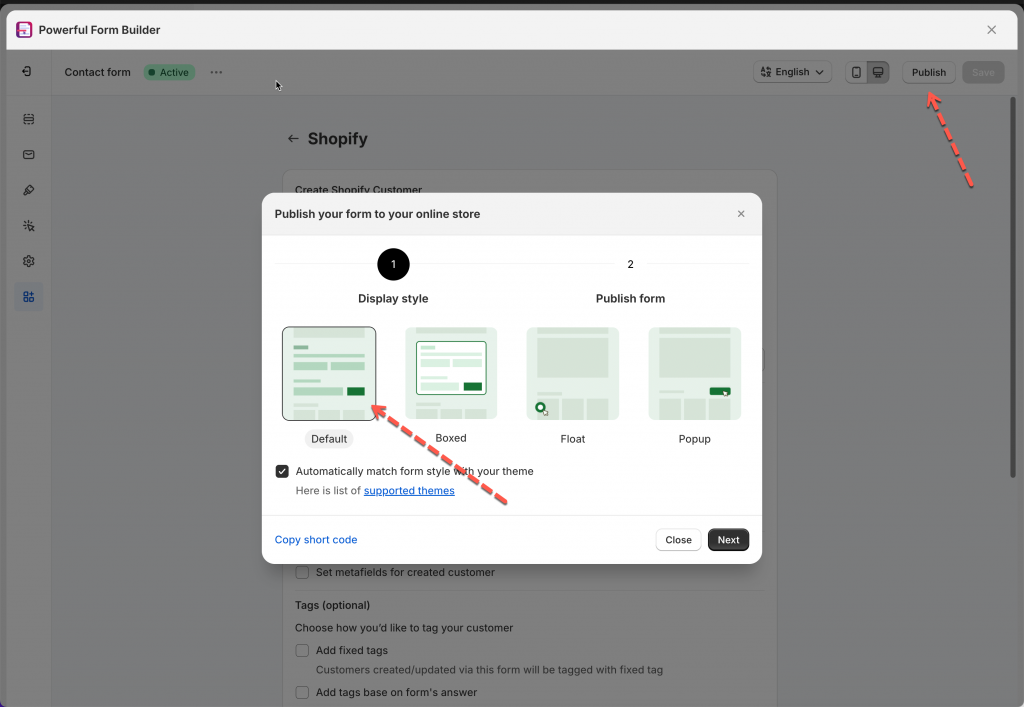
#### Click Publish button and select form layout
Click **Publish** button at top right > select the form layout
{% endstep %}
{% step %}
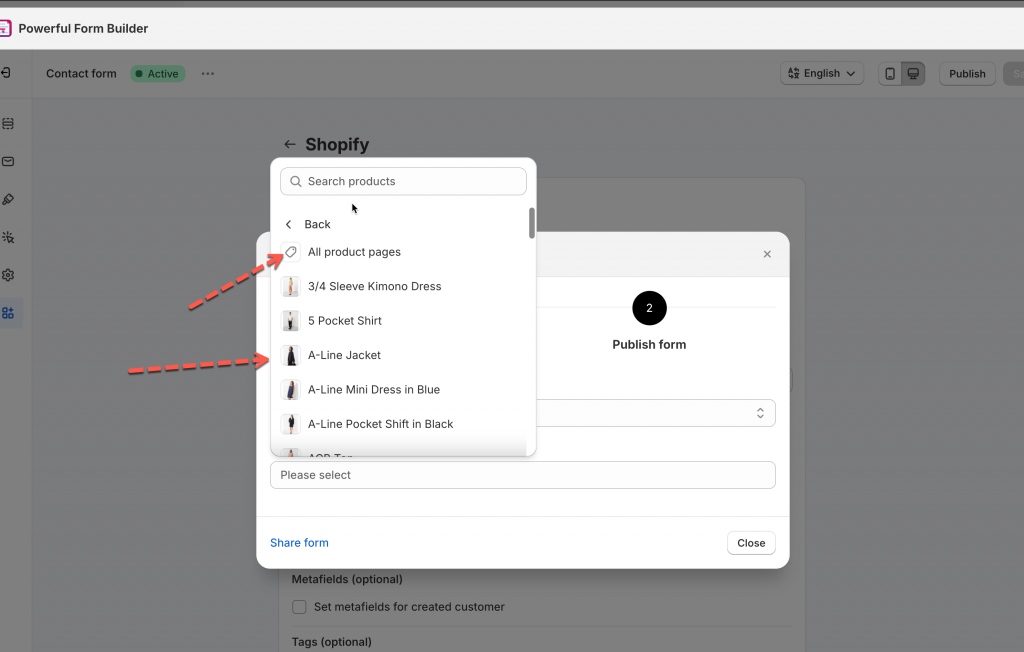
#### Select product to add form
Select a theme and select Products > one of the product to display the form
{% endstep %}
{% step %}
#### Enable app embed on the theme
Click **Go to theme** to enable the app embed to show form. If you enabled it, you can ignore the message
{% endstep %}
{% step %}
#### Select the position and publish form
Select the position you want to place the form: At the top of the page or At the bottom of the page > click **Publish** button
Then open the product page on the front store to view the form
{% endstep %}
{% endstepper %}
***
## 📝 Display the form on all product pages
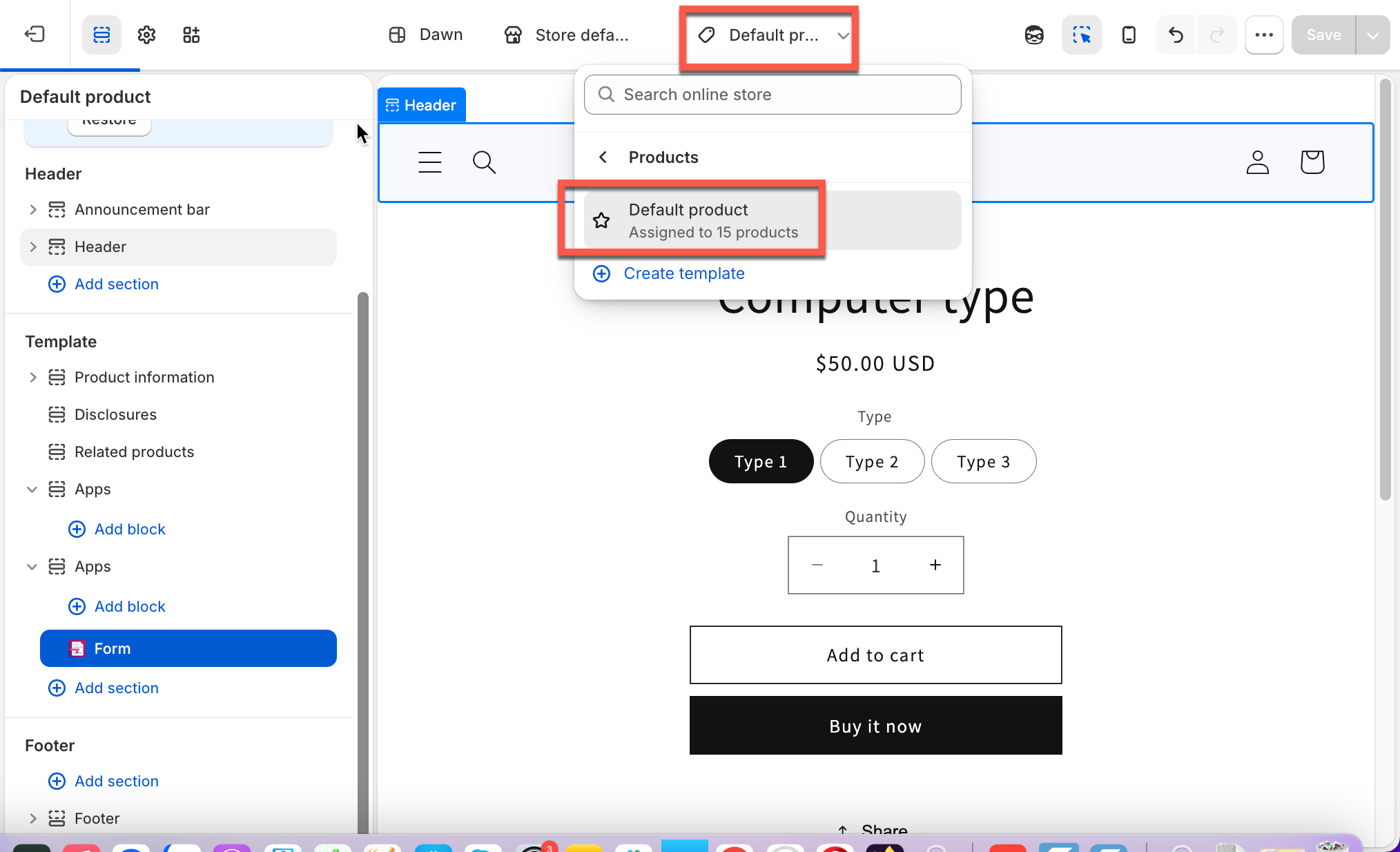
> **📌 Note:** This only adds the form to your theme's **default product template**. If you use **multiple product templates** and want the form on all of them, this needs a bit of customization — contact our support team at [support@powerfulform.com ](mailto:support@powerfulform.com)and we'll help you set it up.
{% stepper %}
{% step %}
#### **Open your form**
Go to **Forms** in the app > open the form you want to display.
{% endstep %}
{% step %}
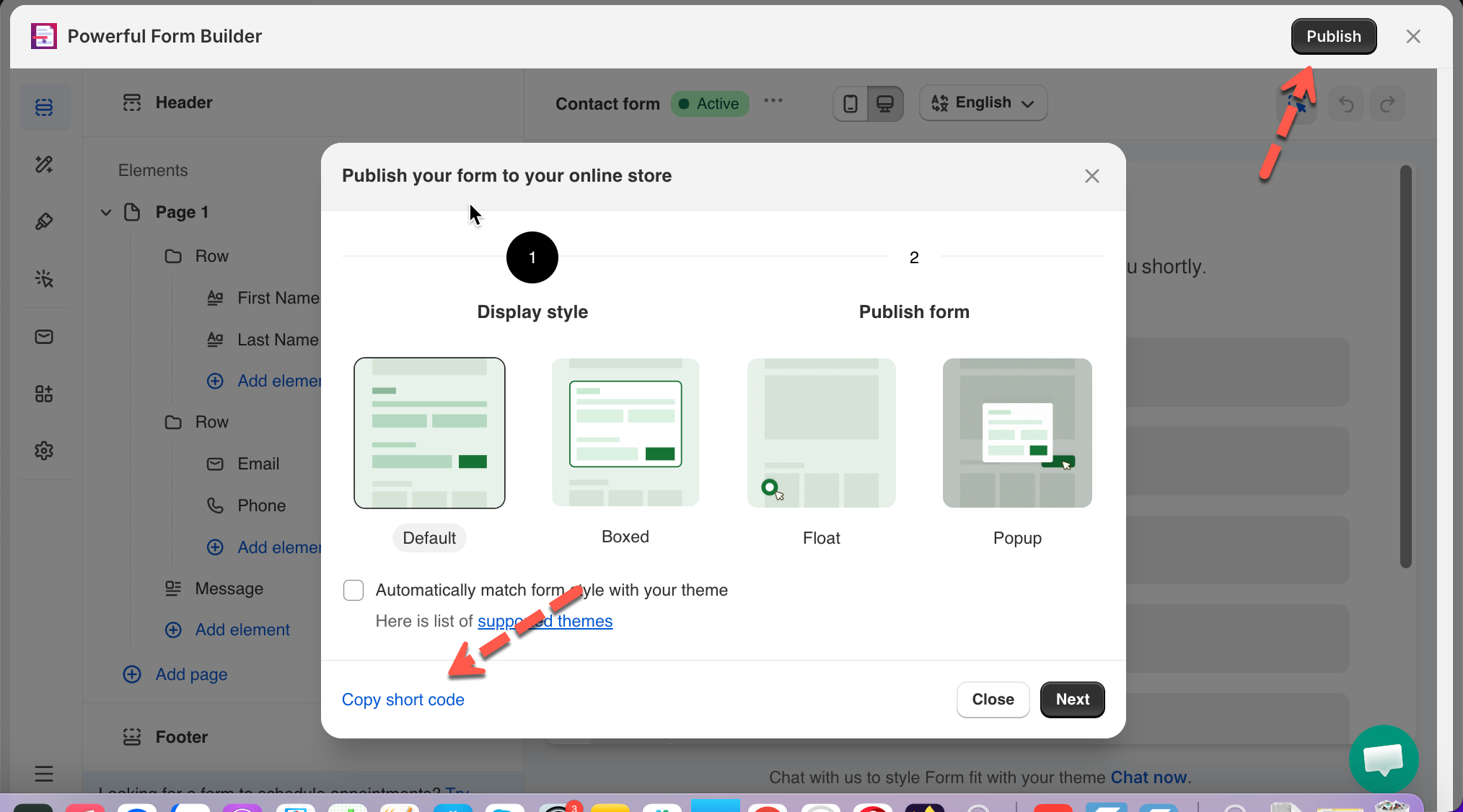
#### Click Publish
Click **Publish** button at the top right > choose a form layout.
{% endstep %}
{% step %}
#### Copy the short code
* Select your theme
* Click **Products** > select **All product pages** > copy the form's short code
{% endstep %}
{% step %}
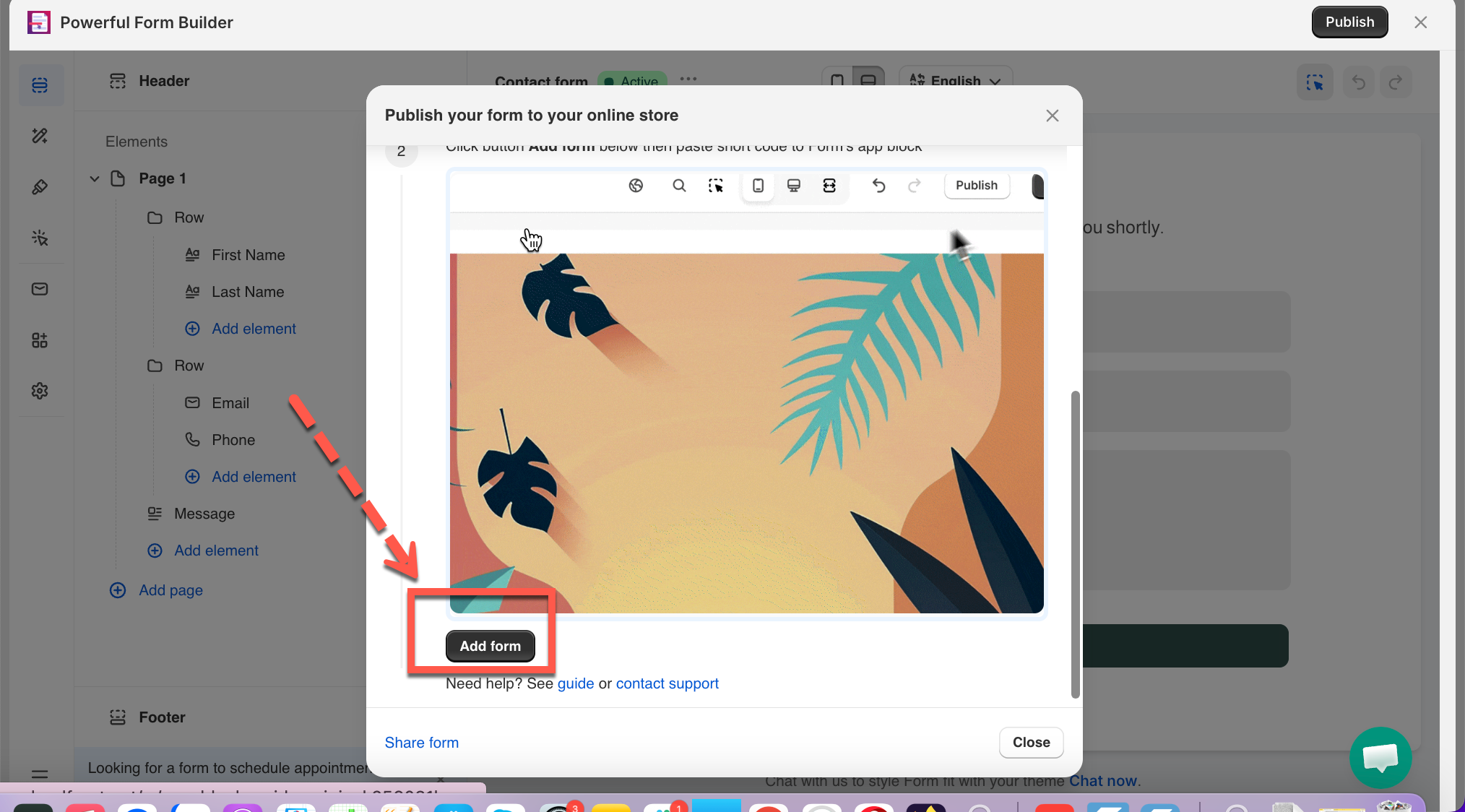
#### Click Add form
This opens the Theme Editor and takes you straight to the default product template.
{% endstep %}
{% step %}
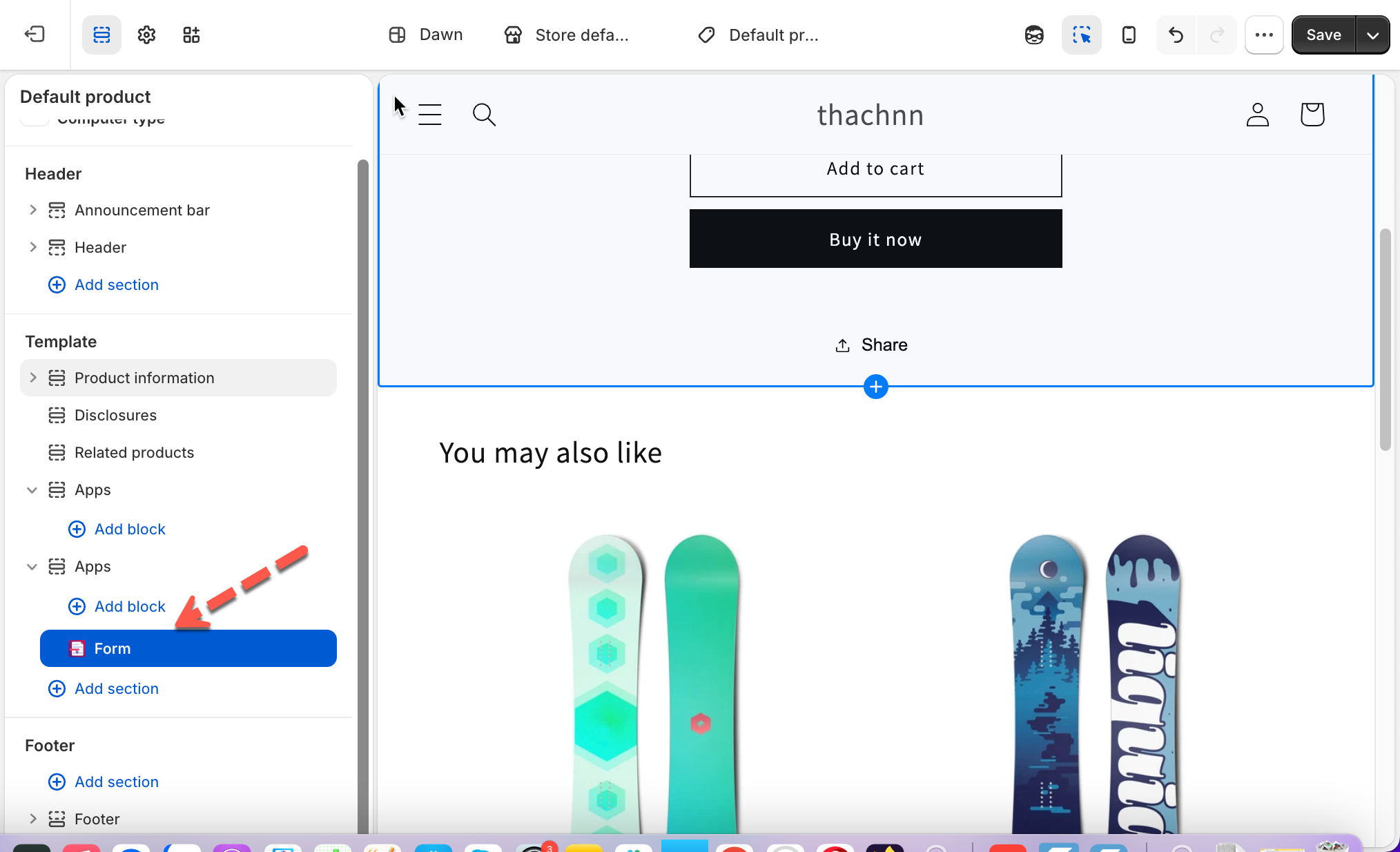
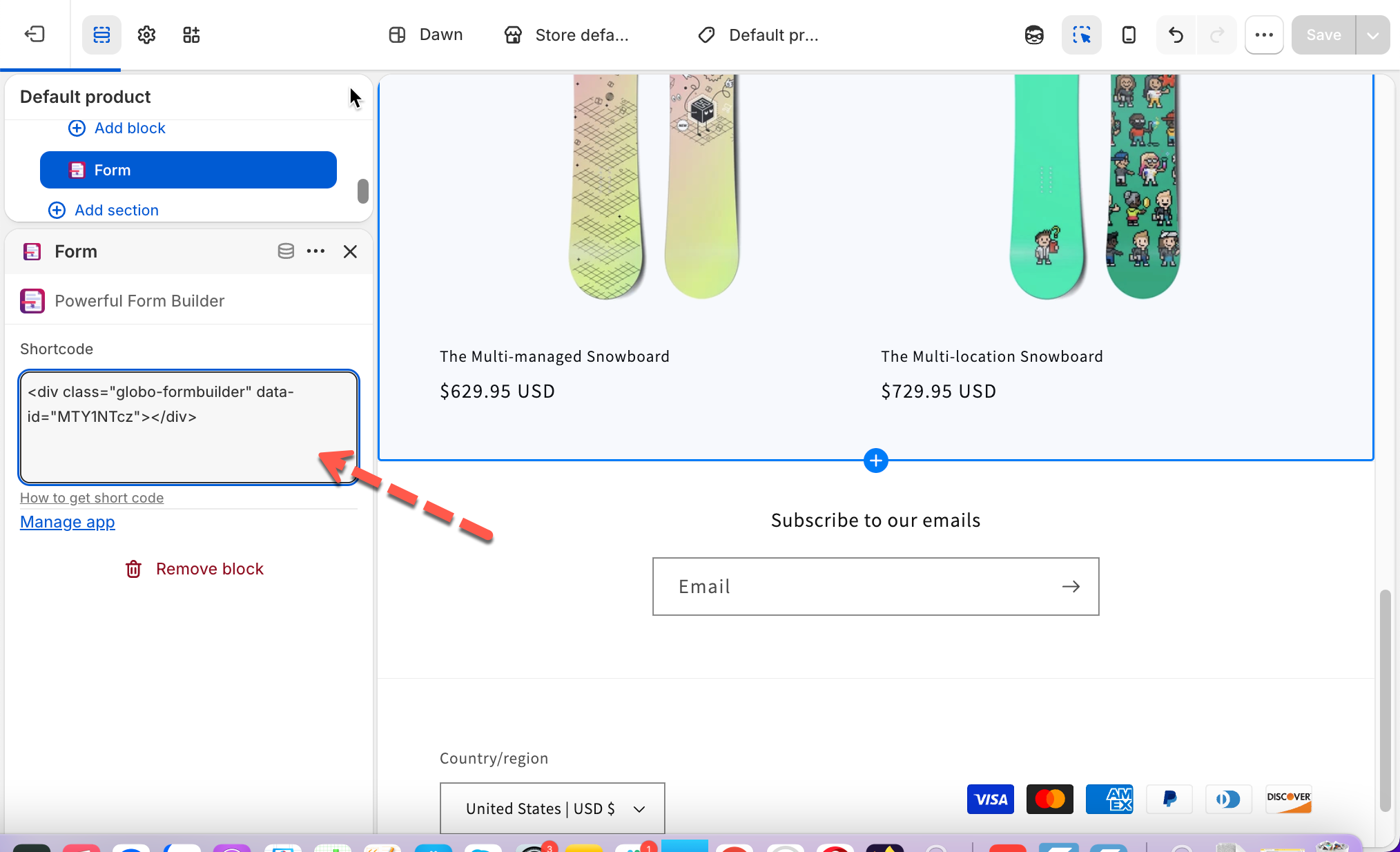
#### Paste the short code and save
Click the **Form Builder** app block > paste the short code > **Save**.
Check your online store — the form should now appear on all products using this template.
{% endstep %}
{% endstepper %}
***
## 🎯 Display Different Forms on Different Products
Show a unique form on specific products — instead of the same form everywhere.
You now have **two clean options** to display different forms on individual product pages:
Option
Difficulty
Best For
1. Add code in product description
⭐ Easy
Fast setup, basic placement
2. Use custom product template
⭐⭐ Professional
Perfect layout control, recommended
### 🧩 Option 1 — Add the Form Code to the Product Description
Quick and simple, but the form's position on the page can't be fine-tuned.
{% stepper %}
{% step %}
#### Copy your form's short code
Open **Forms** > select a form > **Publish** > choose a layout > **Get short code**.
{% endstep %}
{% step %}
#### Paste it into the product description
* Go to **Products** > open a product
* In the Description box, click \ (HTML editor) > paste the code > **Save**.
{% endstep %}
{% endstepper %}
### 🎨 Option 2 — Use a Custom Product Template
More setup, but lets you place the form exactly where you want it.
{% stepper %}
{% step %}
#### Create a new product template
In the Theme Editor, open the template selector > **Products** > **Create template** > give it a name.
{% endstep %}
{% step %}
#### Copy your form's short code
Open **Forms** > select a form > **Publish** > choose a layout > **Get short code**.
{% endstep %}
{% step %}
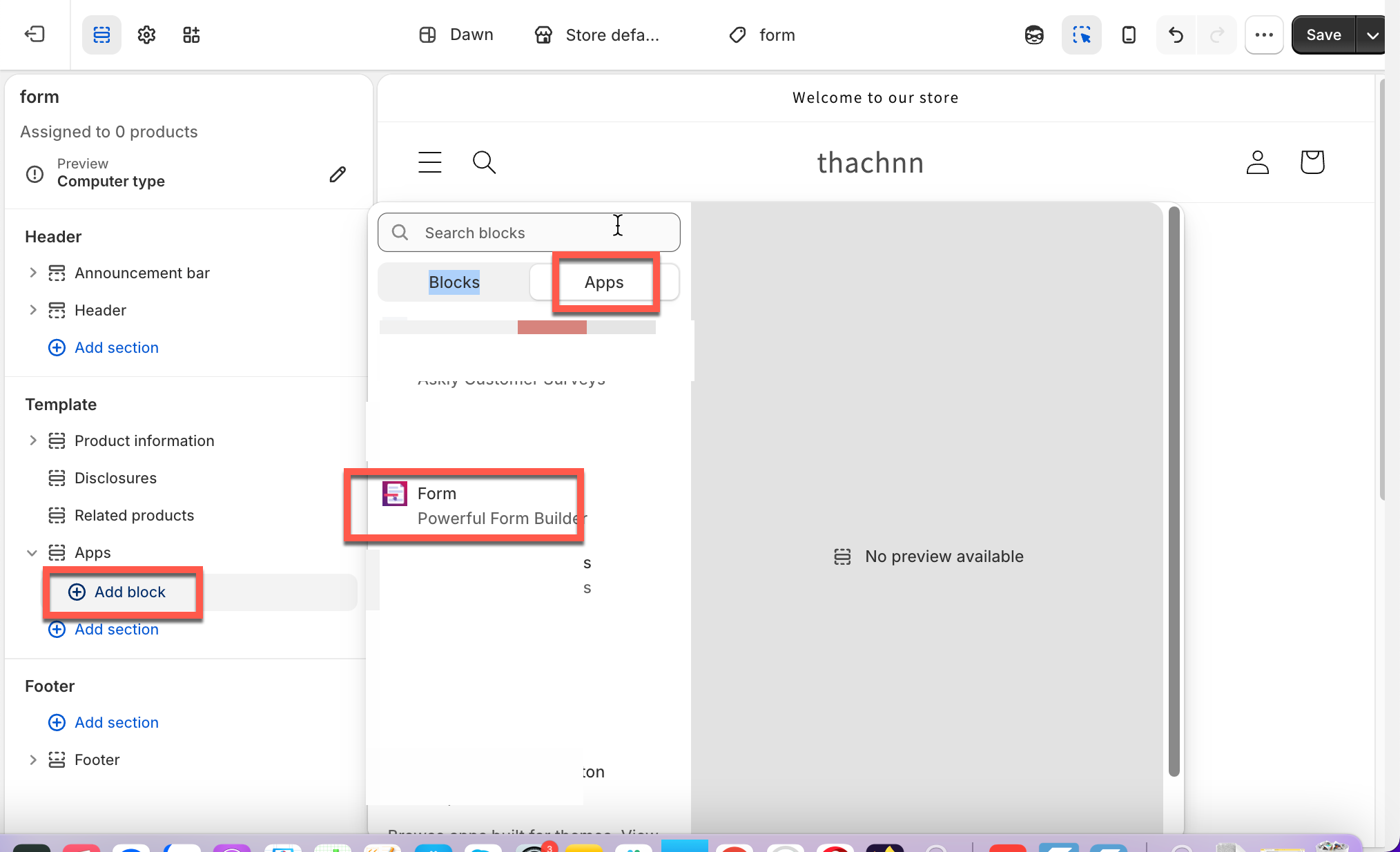
#### Add the form to the template
* **Add section** > **Apps** > **Form Builder** > paste your form's short code into the block.
* Drag it into position > **Save**.
{% endstep %}
{% step %}
#### Assign the template to a product
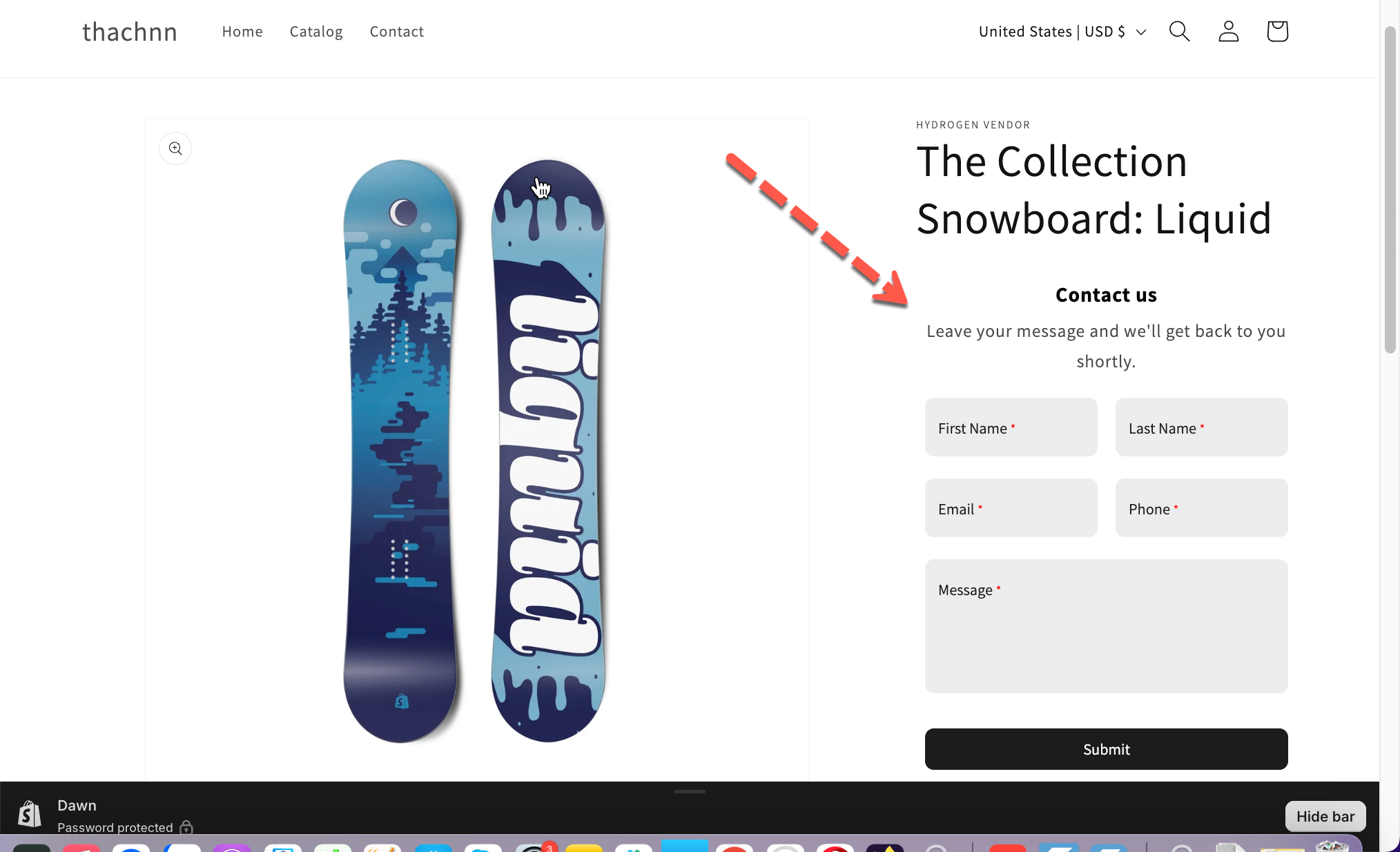
Go to **Products** > open the product > in the **Theme template** dropdown, select your new template > **Save**.
Result:
{% endstep %}
{% endstepper %}
> **📌 Tip:** Repeat these steps for each product — create or duplicate the template, swap in a different form, and assign it. This gives you full control over which form shows where.
## Next steps
* [Get embed code of a form](/globosoftware-docs/display-and-placement/short-code.md) — where the code comes from.
* [Add a form with app block](/globosoftware-docs/display-and-placement/app-block.md) — the app-block route.
* [Contact support](/globosoftware-docs/help/contact-support.md) — if the form still does not appear.