> For the complete documentation index, see [llms.txt](https://globosoftware.gitbook.io/globosoftware-docs/llms.txt). Markdown versions of documentation pages are available by appending `.md` to page URLs; this page is available as [Markdown](https://globosoftware.gitbook.io/globosoftware-docs/display-and-placement/specific-page.md).

# Form on a specific page

Place a form on one specific page of your store rather than on every page.

## 🔍 Pick a Method

<table data-header-hidden><thead><tr><th width="214.5"></th><th width="324.333251953125"></th><th></th></tr></thead><tbody><tr><td>Method</td><td>Best For</td><td>Needs Code?</td></tr><tr><td><strong>App auto-assign</strong></td><td>Quick setup, standard pages</td><td>❌ No</td></tr><tr><td><strong>Embed shortcode</strong></td><td>Custom pages, blog posts</td><td>✅ Basic HTML paste</td></tr><tr><td><strong>App block</strong></td><td>Theme-integrated, reusable sections</td><td>✅ Theme editor</td></tr></tbody></table>

## 🚀 Method 1 — App Auto-Assign (Easiest)

Use this when you want the form to appear on a specific page (e.g. Contact page, Support page) without editing code.

{% stepper %}
{% step %}

#### Open the form

Open the app > click **Forms** > open the form you want to display or create the new one
{% endstep %}

{% step %}

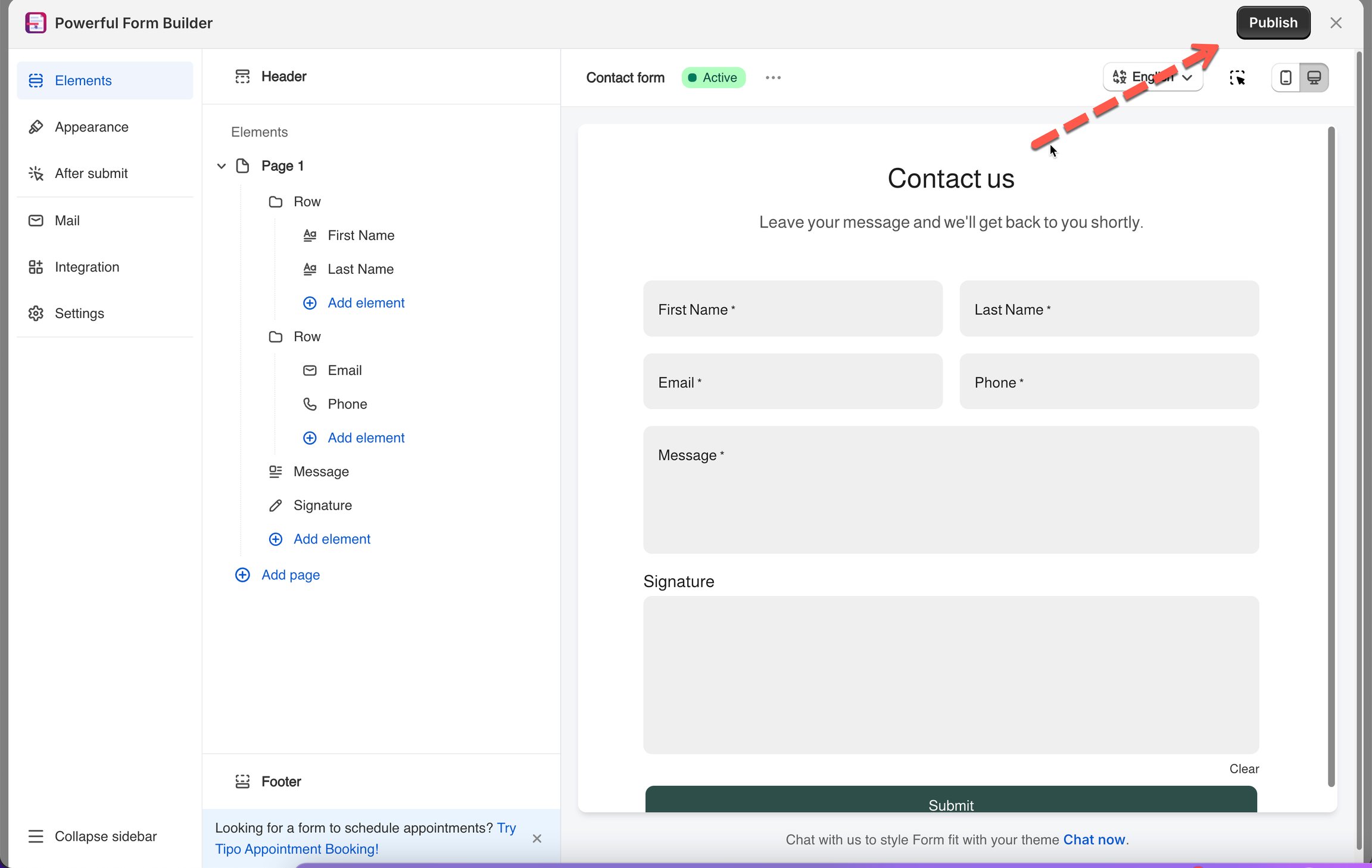
#### Click Publish button

<figure><img src="https://712145376-files.gitbook.io/~/files/v0/b/gitbook-x-prod.appspot.com/o/spaces%2F2AkSDlkSYnQXINUtOZOT%2Fuploads%2Fgit-blob-5446b93a7045f3f9c9e9505f2570db34a4ca11b6%2Fscreenshot-imported-display-and-placement-display-a-form-on-a-specific-page-1.png?alt=media" alt=""><figcaption></figcaption></figure>
{% endstep %}

{% step %}

#### Select the form layout

Form layouts: default, boxed, floating, popup
{% endstep %}

{% step %}

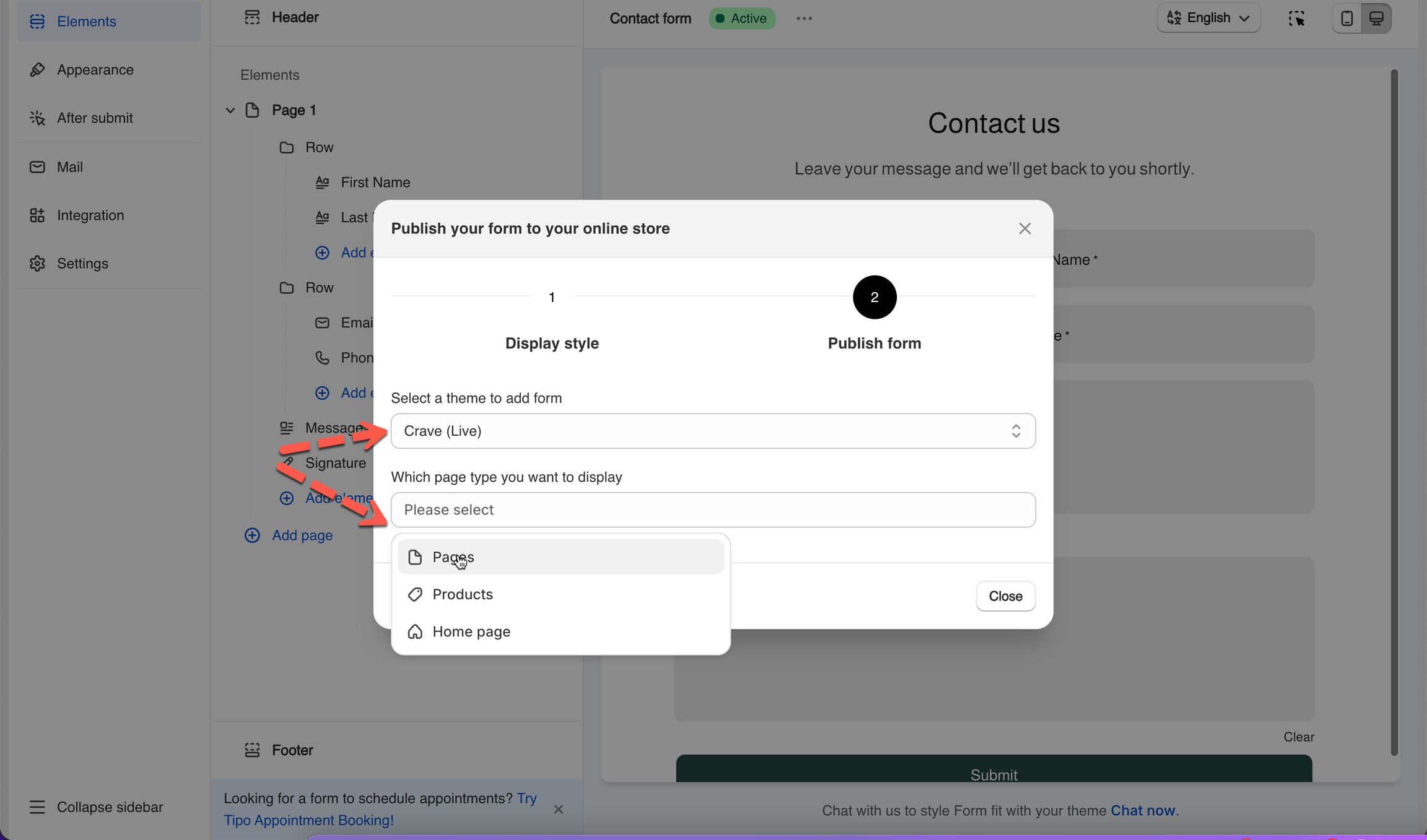
#### Select the theme and the page

On the popup, select the theme and the page you want to display the form on

<figure><img src="https://712145376-files.gitbook.io/~/files/v0/b/gitbook-x-prod.appspot.com/o/spaces%2F2AkSDlkSYnQXINUtOZOT%2Fuploads%2Fgit-blob-12bcbd73c553979da8767f77a754eb3113c08bfc%2Fscreenshot-imported-display-and-placement-display-a-form-on-a-specific-page-2.png?alt=media" alt=""><figcaption></figcaption></figure>
{% endstep %}

{% step %}

#### Enable the app embed

Click **Go to theme** to enable the app embed to show form. If you enabled it, you can ignore the message
{% endstep %}

{% step %}

#### Choose position ( Top or Bottom of page) > Publish

<figure><img src="https://712145376-files.gitbook.io/~/files/v0/b/gitbook-x-prod.appspot.com/o/spaces%2F2AkSDlkSYnQXINUtOZOT%2Fuploads%2Fgit-blob-1eb2dd5eee95eca421e3e95e8997f9714ca8548c%2Fscreenshot-imported-display-and-placement-display-a-form-on-a-specific-page-3.png?alt=media" alt=""><figcaption></figcaption></figure>
{% endstep %}

{% step %}

#### View page to confirm

{% endstep %}
{% endstepper %}

***

## 🧩 Method 2 — Shortcode Embed

**Best for:** when you need to embed a form inside custom content, blog posts, or any page where you can edit HTML.

{% stepper %}
{% step %}

### Copy embedded code of the form

* Open the app > click **Forms** > open a form you want
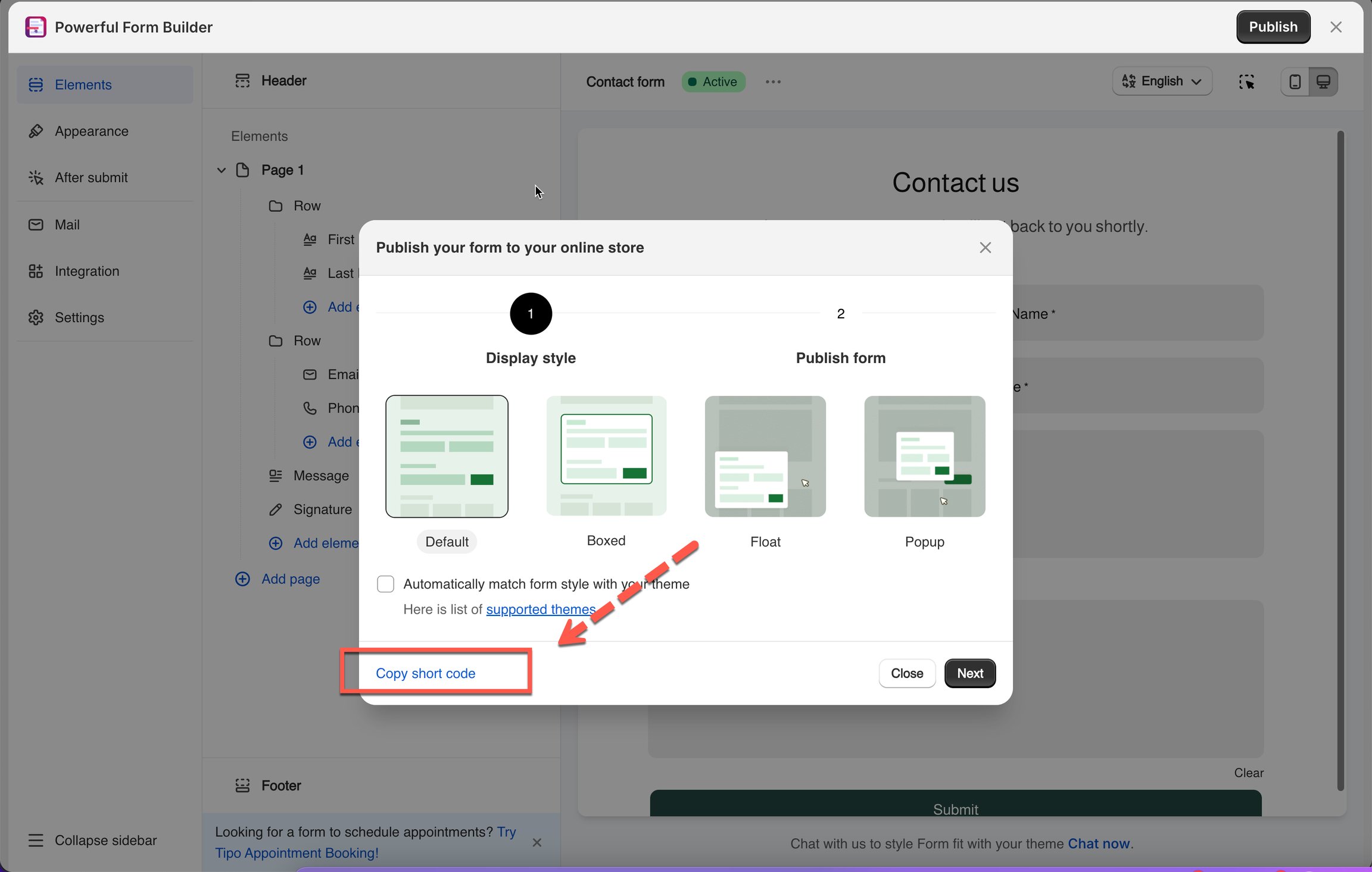
* Click **Publish** button on the right corner
* Select the display of the form: default, boxed, floating, popup
* Click **Get short code** > copy the short code of the form

<figure><img src="https://712145376-files.gitbook.io/~/files/v0/b/gitbook-x-prod.appspot.com/o/spaces%2F2AkSDlkSYnQXINUtOZOT%2Fuploads%2Fgit-blob-5fac9deac26b5a18299af04522e1423613950a9b%2Fscreenshot-integration-form-with-pagefly-1.png?alt=media" alt=""><figcaption></figcaption></figure>

<figure><img src="https://712145376-files.gitbook.io/~/files/v0/b/gitbook-x-prod.appspot.com/o/spaces%2F2AkSDlkSYnQXINUtOZOT%2Fuploads%2Fgit-blob-9574dcfcd4e1c9d9c532b76a7e15dad392549cd2%2Fscreenshot-integration-form-with-pagefly-2.png?alt=media" alt=""><figcaption></figcaption></figure>
{% endstep %}

{% step %}

### Add embedded code to the page/section you want

For example: I would like to add the form to contact page

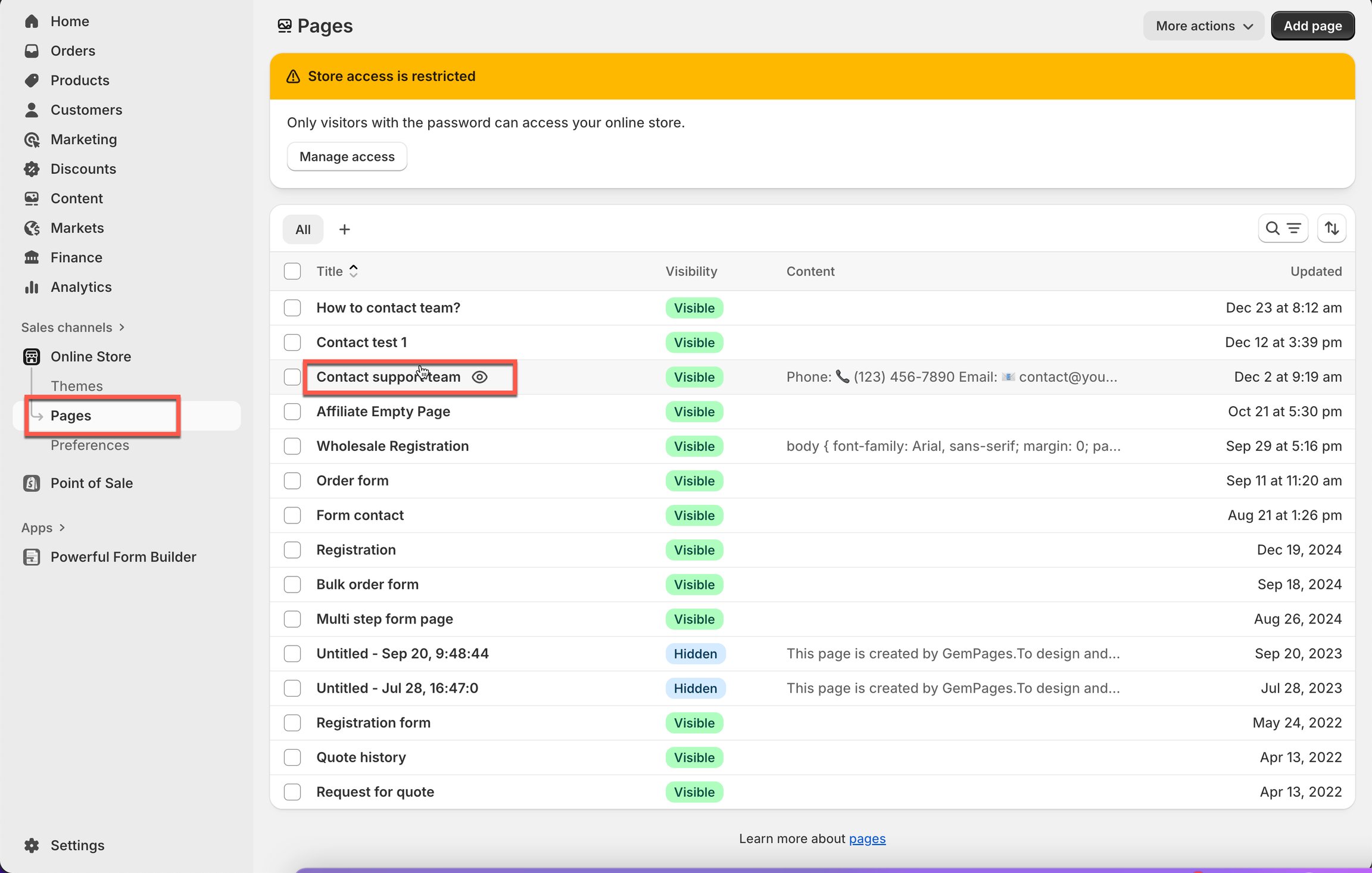
* Form Shopify admin page > click **Sale channels** > **Online stores**
* Click **Pages** > open a page you want

<figure><img src="https://712145376-files.gitbook.io/~/files/v0/b/gitbook-x-prod.appspot.com/o/spaces%2F2AkSDlkSYnQXINUtOZOT%2Fuploads%2Fgit-blob-d85d43eb545d698b541d3f21f41124c12a202a86%2Fscreenshot-imported-display-and-placement-display-a-form-on-a-specific-page-6.png?alt=media" alt=""><figcaption></figcaption></figure>

* Click icon **\</>** to show **HTML** content of the page

<figure><img src="https://712145376-files.gitbook.io/~/files/v0/b/gitbook-x-prod.appspot.com/o/spaces%2F2AkSDlkSYnQXINUtOZOT%2Fuploads%2Fgit-blob-9d021d286cc796939e17043b1cb394536818de25%2Fscreenshot-imported-display-and-placement-display-a-form-on-a-specific-page-7.png?alt=media" alt=""><figcaption></figcaption></figure>

* Paste the embedded code of the form here

<figure><img src="https://712145376-files.gitbook.io/~/files/v0/b/gitbook-x-prod.appspot.com/o/spaces%2F2AkSDlkSYnQXINUtOZOT%2Fuploads%2Fgit-blob-73502e456dcfbdc516094151b83da6672b7cbe13%2Fscreenshot-imported-display-and-placement-display-a-form-on-a-specific-page-8.png?alt=media" alt=""><figcaption></figcaption></figure>

* Click **Save**
* Then click **View page** to see how it looks on the site

<figure><img src="https://712145376-files.gitbook.io/~/files/v0/b/gitbook-x-prod.appspot.com/o/spaces%2F2AkSDlkSYnQXINUtOZOT%2Fuploads%2Fgit-blob-20498c18594faca484f72e5f25d8fc7518f5e8f4%2Fscreenshot-imported-display-and-placement-display-a-form-on-a-specific-page-9.png?alt=media" alt=""><figcaption></figcaption></figure>
{% endstep %}
{% endstepper %}

***

## 🎨 Method 3 — App Block (Theme Editor)

Use this when you want to insert the form as part of your theme layout — using Shopify’s theme editor. Good for themes with customizable sections or for repeating forms on multiple pages.

Learn more [add form with app block here](/globosoftware-docs/display-and-placement/app-block.md)

{% stepper %}
{% step %}

### Copy the Form Shortcode

<figure><img src="https://712145376-files.gitbook.io/~/files/v0/b/gitbook-x-prod.appspot.com/o/spaces%2F2AkSDlkSYnQXINUtOZOT%2Fuploads%2Fgit-blob-5cc7449f119796a94a9c8c690c5f02df4131dc5c%2Fimage.png?alt=media" alt=""><figcaption></figcaption></figure>
{% endstep %}

{% step %}

### Add the Form as an App Block

<figure><img src="https://712145376-files.gitbook.io/~/files/v0/b/gitbook-x-prod.appspot.com/o/spaces%2F2AkSDlkSYnQXINUtOZOT%2Fuploads%2Fgit-blob-093490f5541ed84dcfd3c0441d88404abc63313f%2Fimage.png?alt=media" alt=""><figcaption></figcaption></figure>
{% endstep %}
{% endstepper %}

## ▶️ Tutorial video

{% embed url="<https://www.youtube.com/watch?v=15Qhc2sDJoo&t=3s>" %}

## Next steps

* [Get embed code of a form](/globosoftware-docs/display-and-placement/short-code.md) — where the code comes from.
* [Add a form with app block](/globosoftware-docs/display-and-placement/app-block.md) — the app-block alternative.
* [Contact support](/globosoftware-docs/help/contact-support.md) — if the form still does not appear.