> For the complete documentation index, see [llms.txt](https://globosoftware.gitbook.io/globosoftware-docs/llms.txt). Markdown versions of documentation pages are available by appending `.md` to page URLs; this page is available as [Markdown](https://globosoftware.gitbook.io/globosoftware-docs/email-notifications/email-template-editor/add-image-to-email-template.md).
# Add an image to an email template
Put a logo or a banner in the emails your form sends, by hosting the picture in Shopify Files and pasting its link into the email editor.
You can add a logo, a banner or any picture to an email template in **Powerful Contact Form Builder** by inserting an image into the email editor and pointing it at a file hosted in Shopify.
{% hint style="info" %}
The editor stores a **link** to the picture, not the picture itself. Host the file somewhere that stays reachable — Shopify Files is the easiest place, because it is already on your store and needs no extra account.
{% endhint %}
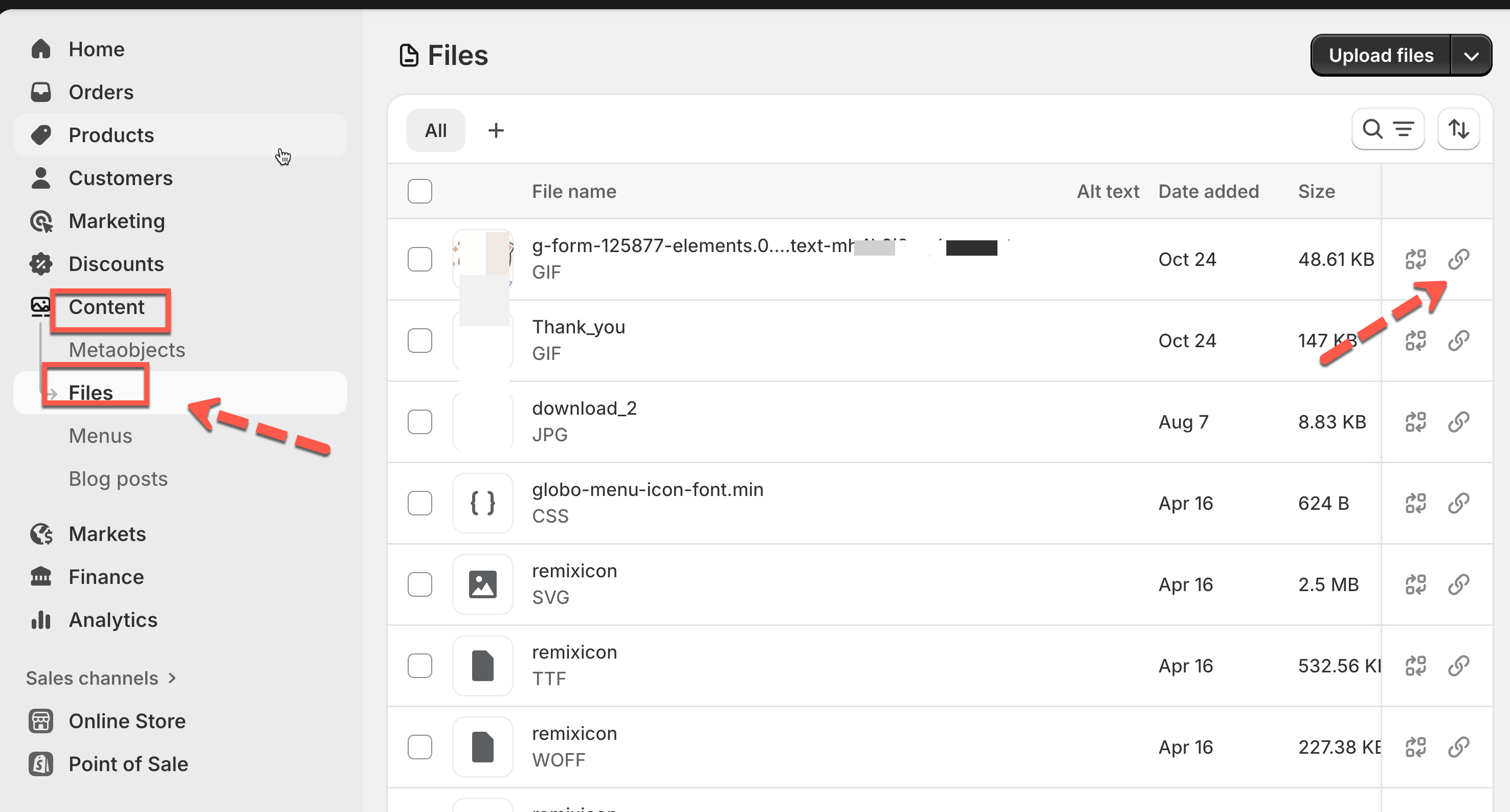
## Step 1: Upload the image to Shopify Files
{% stepper %}
{% step %}
### Open Files
In your Shopify admin, go to **Content** > **Files**.
{% endstep %}
{% step %}
### Upload the picture
Click **Upload files** and pick your image — PNG, JPG or GIF.
{% endstep %}
{% step %}
### Copy its link
Click the file to open it, then copy the **file URL**. That link is what you paste into the email editor.
{% endstep %}
{% endstepper %}
## Step 2: Insert the image into the email
{% stepper %}
{% step %}
### Open the email template
Open the app, click **Forms**, open the form you want to edit, then click the **Mail** icon in the left rail and choose the template — the customer autoresponder, for example.
{% endstep %}
{% step %}
### Open the image dialog
Scroll down to the email body. In the editor toolbar, click **Insert** > **Image**.
{% endstep %}
{% step %}
### Paste the link and size it
In the **Insert/Edit Image** dialog:
* **Source** — paste the file URL you copied from Shopify Files.
* **Alternative description** — optional, but worth filling in. It is the text shown when the picture cannot load, which is common in email.
* **Width** and **Height** — optional. Leave them empty to use the picture's own size.
{% endstep %}
{% step %}
### Save
Click **Save** in the dialog, then save the form. The image now appears in that email template.
{% endstep %}
{% endstepper %}
{% hint style="warning" %}
Send yourself a test before you rely on it. Many email clients block remote images until the reader allows them, so an email that is only a picture can arrive looking empty — keep the important wording as text.
{% endhint %}
## Next steps
* [Edit customer email template](/globosoftware-docs/email-notifications/email-template-editor.md) — everything else the email editor can do.
* [Insert form answers into an email](/globosoftware-docs/email-notifications/email-template-editor.md#dynamic-variables) — put what the customer typed into the message.
* [Customer email notification](/globosoftware-docs/email-notifications/customer-autoresponder.md) — the reply your customer receives.
* [Admin email notification](/globosoftware-docs/email-notifications/admin-notification.md) — the copy that reaches your team.