> For the complete documentation index, see [llms.txt](https://globosoftware.gitbook.io/globosoftware-docs/llms.txt). Markdown versions of documentation pages are available by appending `.md` to page URLs; this page is available as [Markdown](https://globosoftware.gitbook.io/globosoftware-docs/field-types/selects/image-options.md).
# Image Options
Let visitors choose by picture instead of by text, with one image tile per option.
The **Image Options** field turns a choice list into a grid of picture tiles. Use it when the picture is the answer — a fabric swatch on a custom furniture request, a frame style on a print order, or the cake design a customer wants for their order.
{% hint style="info" %}
**Image Options** is not included on the Free plan. Its tile in the element picker is grayed out with an upgrade prompt. See [Plans and billing](/globosoftware-docs/settings/plans-and-billing.md).
{% endhint %}
## 🔧 How to Set It
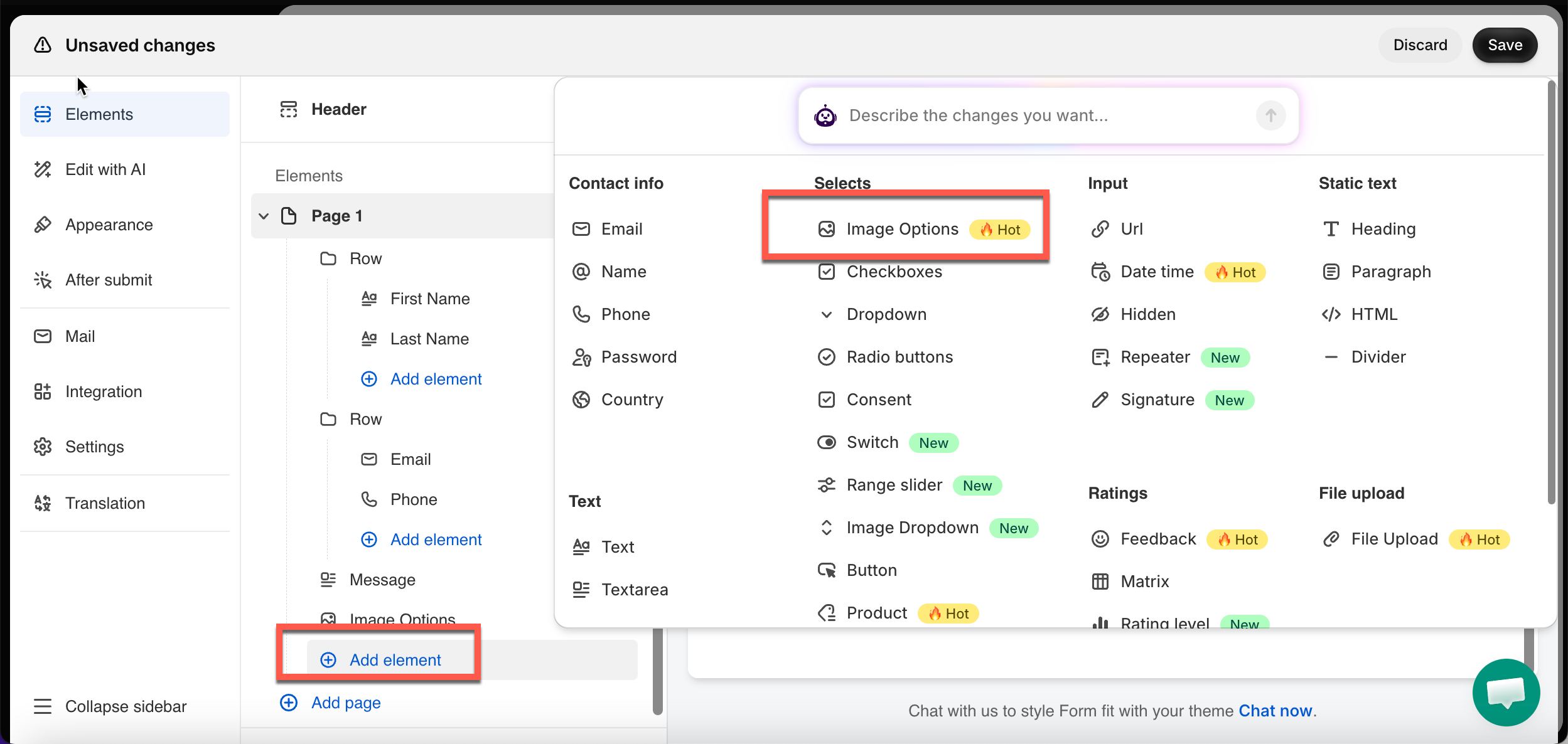
* In the form editor, click **Add elemen**
* Pick **Image Options**.
The field is added and its settings open on the left. See [Add and arrange elements](/globosoftware-docs/build-your-form/add-and-arrange-elements.md) for the other ways to add a field and how to reorder them.
## 🔧 Settings
Only the settings specific to this field are listed here. **Label**, **Description**, **Required**, **Column width**, **Conditional display** and the other shared settings work the same on every field.
### **📝 Options**
The list of picture choices. Each one has:
* a **Label** (the name of the choice)
* a **Value** (what’s saved in the submission)
* a **Description** (shown as a tooltip, if enabled)
* an **image** (the tile itself)
Click **Expand** to see and edit all columns side by side.
> **⚠️ Note:** Only the **Label** can be translated. The **Value** stays the same across all languages.
**🖼️ Upload the Pictures**
Each option row has a thumbnail slot on its left. Click it, pick an image, and wait for the thumbnail to appear before moving on.
### **✅ Multiple Selection**
Lets the visitor pick more than one picture. Off by default.
Turning it on reveals **Limit selections**, then **Min selections** and **Max selections**.
**Example:** A cake order turns on **Multiple selection** and **Limit selections** with **Max selections** `2` — visitors can pick up to two designs.
> **📌 Note:** Outside the range, submission is blocked with a message naming your number, like *“Please choose at least 2 options.”* when the submit button is clicked.
### **💬 Enable Tooltip**
Shows each option’s **Description** when the visitor hovers over its tile. Off by default.
Click **Expand** above the **Options** list — a **Description** column appears. Whatever you type there shows on hover.
**Example:** A frame-style field uses tooltips for details that won’t fit under the picture — material, size, or lead time.
## 🔄 How It Works
**What’s saved:** Each chosen option’s **Value** — not the image, not the Label. With **Multiple selection** on, every chosen value is stored. It appears in **Submissions**, emails, exports, and integrations.
## 🔁 Compare
Use
When
Image Options
A short set of choices where the picture is the answer
Image Dropdown
The same idea in a closed list — better for longer sets
Color Swatch
Choose from a color palette instead of pictures
## Next steps
* [Image Dropdown](/globosoftware-docs/field-types/selects/image-dropdown.md) — the same idea in a closed list, for longer sets of choices.
* [Color Swatch](/globosoftware-docs/field-types/colors/color-swatch.md) — pick from a palette you define instead of from pictures.