> For the complete documentation index, see [llms.txt](https://globosoftware.gitbook.io/globosoftware-docs/llms.txt). Markdown versions of documentation pages are available by appending `.md` to page URLs; this page is available as [Markdown](https://globosoftware.gitbook.io/globosoftware-docs/getting-started/quickstart/create-your-first-form.md).
# Create your first form
Start a form from a template, edit its fields, and save it.
{% stepper %}
{% step %}
### Open the Create new form window
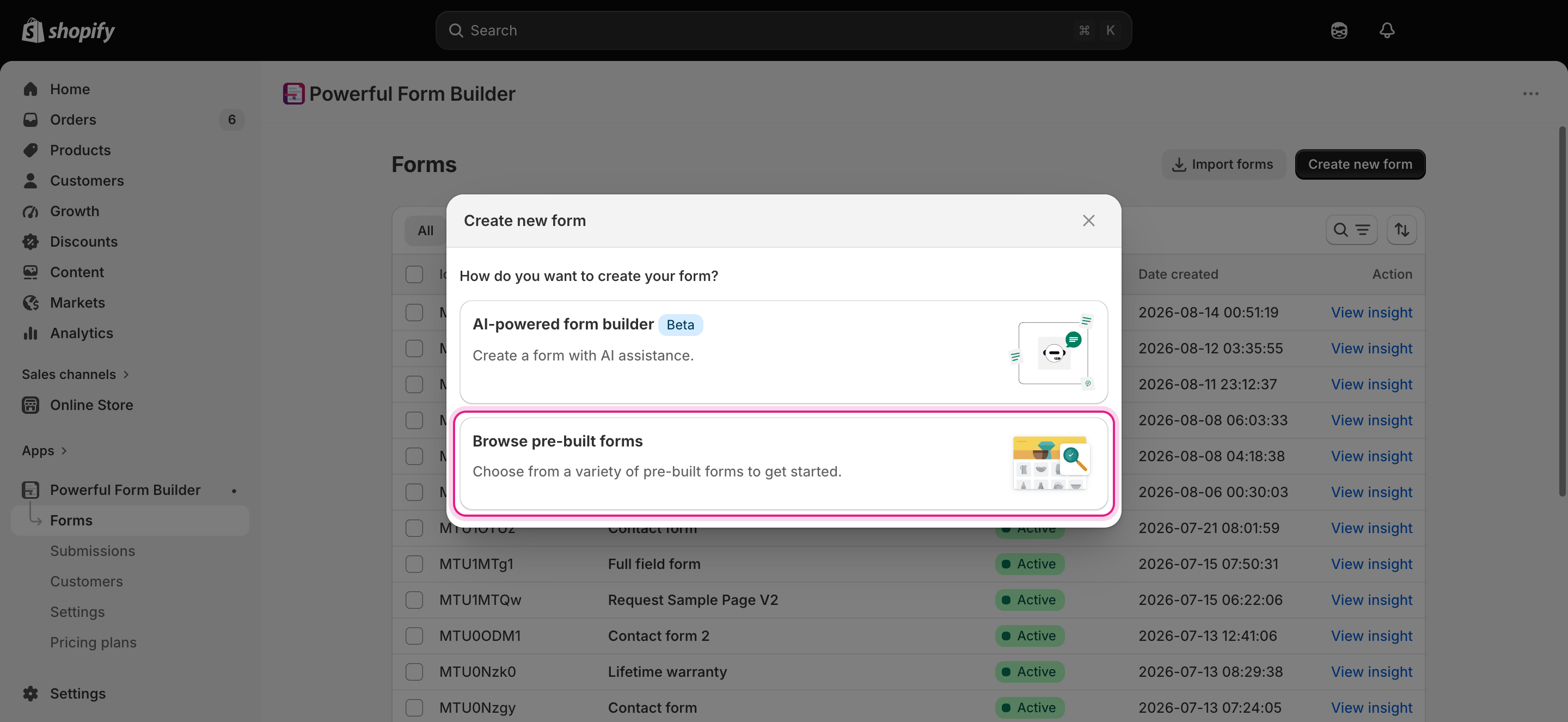
Open the app > click **Forms** in the app menu and click **Create new form**.
2 starting points:
* **AI-powered form builder** — describe the form and let the app build it.
* **Browse pre-built forms** — pick a template, or the **Contact blank form** card to start from nothing.
Choose how you want to start; Browse pre-built forms is the quickest route to a finished form.
{% endstep %}
{% step %}
### Choose Browse pre-built forms
For this quickstart, click **Browse pre-built forms**. The [Form templates](/globosoftware-docs/getting-started/new-form.md#form-templates) gallery opens.
{% endstep %}
{% step %}
### Select the Contact form template
Click **Select** on the **Contact form** card.
{% endstep %}
{% step %}
### Edit the fields
Click any field in the preview to open its settings; use the left tool rail to add fields, change the appearance, or open the form's settings.
At a minimum:
* Give the form a title you will recognize in the **Forms** list.
* Edit each field's label and whether it is required.
* Remove any fields you do not need.
{% endstep %}
{% step %}
### Save
Click **Save** on the save bar at the top of the screen. Nothing you changed is stored until you do.
{% endstep %}
{% endstepper %}
## Next steps
* [Publish the form to a page](/globosoftware-docs/getting-started/quickstart/publish-the-form.md) — step 2 of the quickstart.
* [The form editor](/globosoftware-docs/build-your-form/form-editor-overview.md) — every panel and control in the editor.