> For the complete documentation index, see [llms.txt](https://globosoftware.gitbook.io/globosoftware-docs/llms.txt). Markdown versions of documentation pages are available by appending `.md` to page URLs; this page is available as [Markdown](https://globosoftware.gitbook.io/globosoftware-docs/integrations/shopify/shopify-flow.md).
# Shopify Flow Integration
Trigger a Shopify Flow workflow every time one of your forms is submitted.
After submitting the form successfully, the submission data will be sent to **Shopify Flow** as a JSON string.\
You can use this data to automate actions such as adding tags, sending emails, or triggering workflows.
## How to set it up
### Enable Shopify Flow
1\. Open the app > click **Forms** > open the form you want to edit
2\. Click the **Integration** icon on the left side > enable **Shopify** and click on **Shopify** option to see setting detail
3\. Select **Shopify Account options - Automatically create customer**
4\. Map form fields to Shopify Customer Fields
* On the right side, you’ll see Shopify customer attributes (Email, Phone, First Name, Last Name, Address, etc.).
* On the left, your form’s fields.
Map each form field to the corresponding Shopify attribute (e.g. “Email” → Shopify **Email**, “First name” → Shopify **First name**).
📌 **Important:** Mapping the form’s **Email** field to Shopify **Email** is required.
5. Scroll down and enable option **Enable Shopify Flow Trigger**
6. Click **Save** button
### How to get form data in Shopify Flow
After a form is submitted, Powerful Contact Form Builder sends the submission data to Shopify Flow as a **JSON string**. To use each field separately, add a **Run code** action to parse the data.
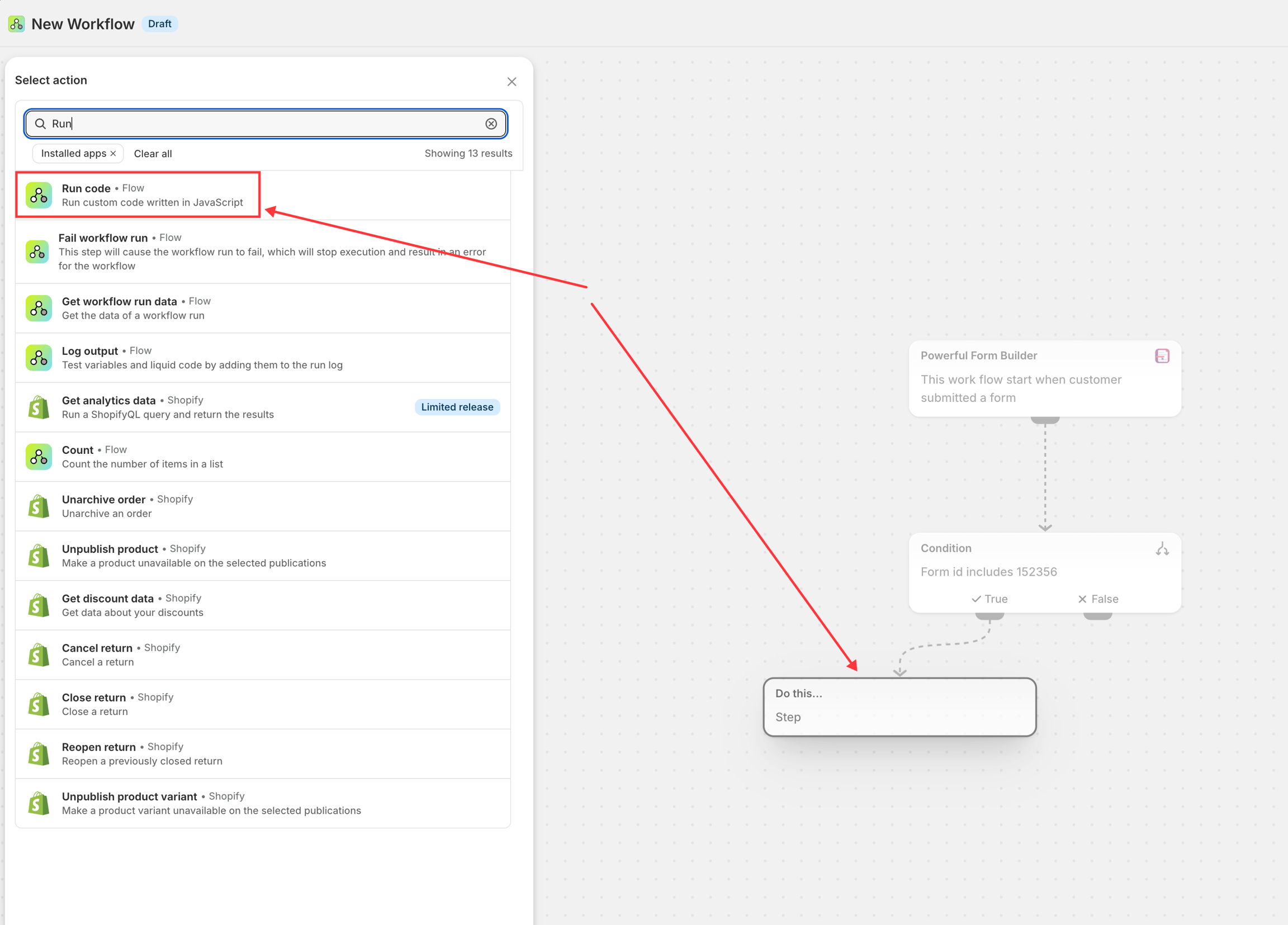
#### Step 1: Add a Run code action
After the Customer submitted a form trigger (or after a Condition), click **Add action**, search for **Run code**, and select it.
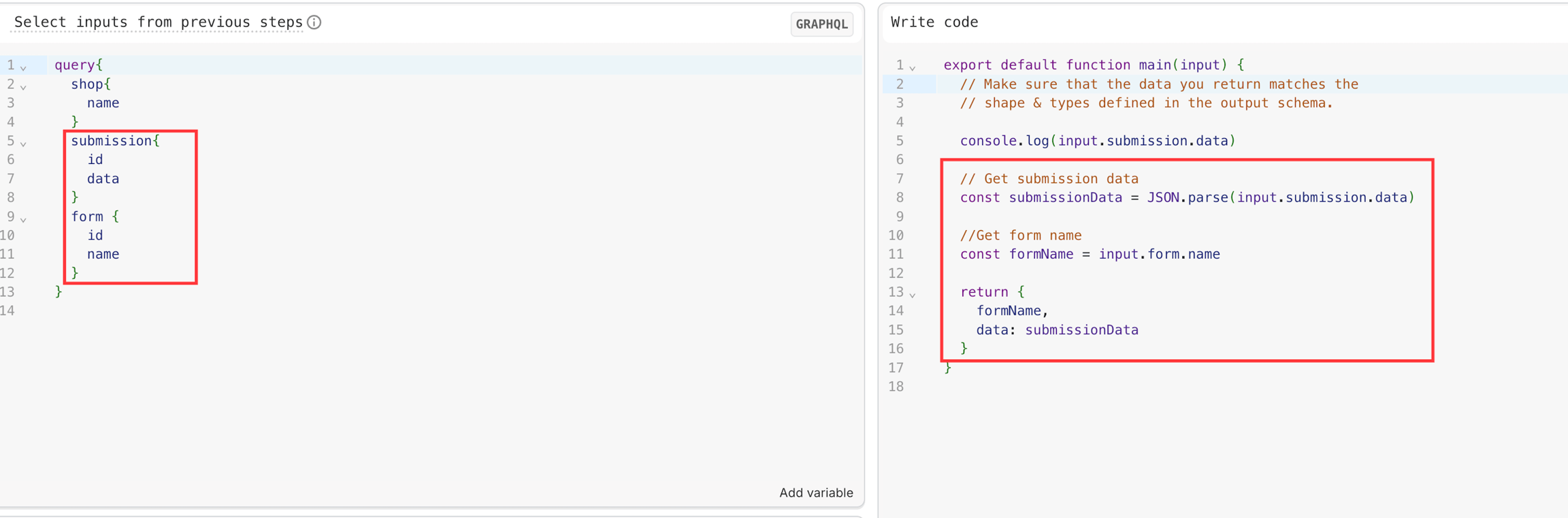
#### Step 2: Configure Run code
1. Add the GraphQL query to retrieve:
* Submission data
* Form ID
* Form name
2. Paste the JavaScript code to parse the JSON string.
3. Define the output schema.
#### Result
The **Run code** action returns the form submission as structured data instead of a JSON string.
You can use this output in the next Shopify Flow steps to:
* Send emails
* Send data to third-party services
* Call external APIs
* Create or update customers
* Build custom automations
## Important Notes
Shopify Flow only triggers when a customer is created or updated. Make sure you select **Automatically create customer**
#### When Flow will NOT work
If you select **Require account approval**
* Customer is **not created immediately**
* Status = pending approval
* ➜ Shopify Flow will NOT trigger
## How it works
* Customer submit the form
* A new customer account is created or updated
* The system sends the submission data to **Shopify Flow** as a JSON string.\
This includes all form fields (such as `email`, `name`, `phone`, `textarea`, etc.), which you can use in your Flow to automate processes like adding tags or sending notifications.
\
## Next steps
* [How integrations work](/globosoftware-docs/integrations/how-integrations-work.md) — what a connection does and where it is configured.
* [Integrations](/globosoftware-docs/integrations/app-integration.md) — every service the app connects to.
* [Contact support](/globosoftware-docs/help/contact-support.md) — if the connection still does not work.