> For the complete documentation index, see [llms.txt](https://globosoftware.gitbook.io/globosoftware-docs/llms.txt). Markdown versions of documentation pages are available by appending `.md` to page URLs; this page is available as [Markdown](https://globosoftware.gitbook.io/globosoftware-docs/integrations/shopify/shopify-marketing-consent.md).
# Shopify Marketing Consent
Record email marketing consent on the Shopify customer a form creates.
{% hint style="info" %}
Please make sure the form is connected to Shopify customer data first. [Learn more](/globosoftware-docs/customers-and-registration/customer-fields.md)
{% endhint %}
You can let customers choose whether to subscribe to marketing emails by adding an **“Accept Marketing” checkbox** in your form. When they submit, the app updates the **Shopify customer’s `accepts_marketing` status** accordingly.
## Add Marketing Consent Fields to Your Form
1\. Open the app > click **Forms** > open the form you want to edit
2\. Click **Element** icon > click **Add element** > select **Consent**
3\. Edit the field to label of the field as you want
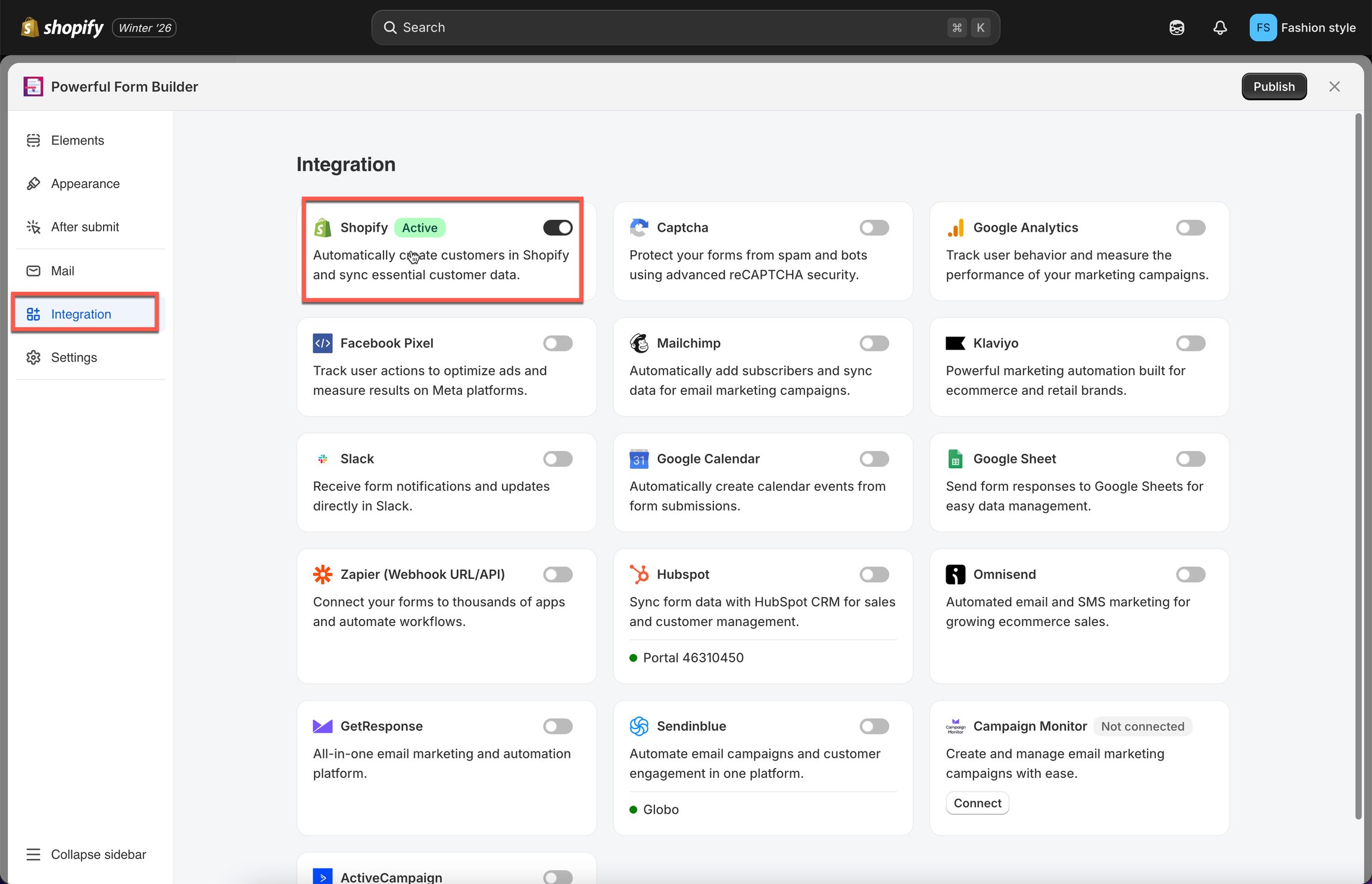
4\. Click the **Integration** icon on the left side > enable **Shopify** > click on **Shopify** option
5. Scroll down to **Marketing (optional)** section, select **Record email marketing consent via form field** > select the checkbox field you have just create
6. Save the form.
{% stepper %}
{% step %}
### Example
Suppose you label the checkbox **“Subscribe to newsletter”**:
* Jane fills out the form and checks **Subscribe to newsletter** → Shopify puts her under subscribed marketing status.
* Bob fills out the form and leaves it unchecked → Shopify sets him as unsubscribed.
{% endstep %}
{% endstepper %}
## How it works
Once a customer submits the form:
* If they check **Email Marketing**, their Shopify customer profile will show:\
**Email marketing: Subscribed**
* If the customer leaves the box unchecked, Shopify will store them as **Unsubscribed**.
This data appears under the customer’s profile in Shopify → **Customers → Marketing**.
\
## Next steps
* [Shopify Customers integration](/globosoftware-docs/customers-and-registration/customer-fields.md) — create the customer the consent is recorded on.
* [How integrations work](/globosoftware-docs/integrations/how-integrations-work.md) — what a connection does and where it is configured.
* [Contact support](/globosoftware-docs/help/contact-support.md) — if the connection still does not work.